
How to setup a Secure SSL/TLS IMAP email account on your Android device using Samsung Email
Prerequisits:
Samsung email app.
Step 1) Swipe up on your home screen to open the App drawer and search for Email, then tap on the app:

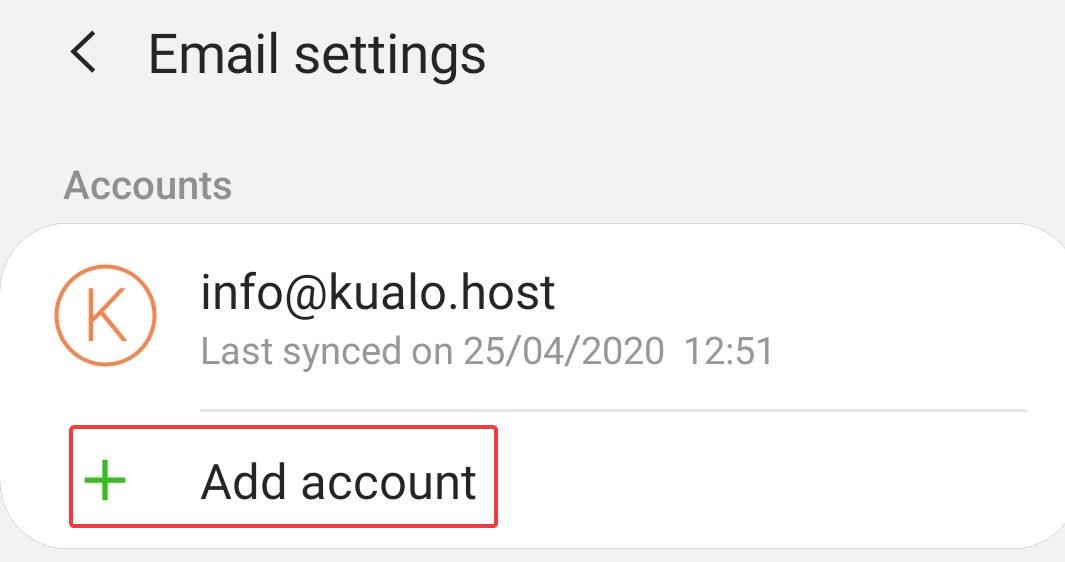
Step 2) If you have another account set up in the app, then click on the Menu button >> Settings >> Add Account:

3) Select Other:

4) Enter your Email >> Password >> click on Manual setup:

5) Select IMAP Account:

6) Swipe up and fill in your:
- Username and Password: The same as the Email and its Password.
- IMAP server: See in cPanel >> Email Accounts >> Connect Devices. In most cases it is: mail.domain.com where domain.com is your own domain name.
- Security type: SSL (Accept all certificates)
- Port: 993

7) Swipe down and fill in the SMTP server settings:
- SMTP server: See in cPanel >> Email Accounts >> Connect Devices. In most cases it is: mail.domain.com where domain.com is your own domain name.
- Security type: SSL (Accept all certificates)
- Port: 465
- Require authentication to send emails: Yes/Enabled.
- Username and Password: The same as the Email and its Password.

Step 8) Click on Sign in.
If you've entered the details correctly, then you should see your inbox.
